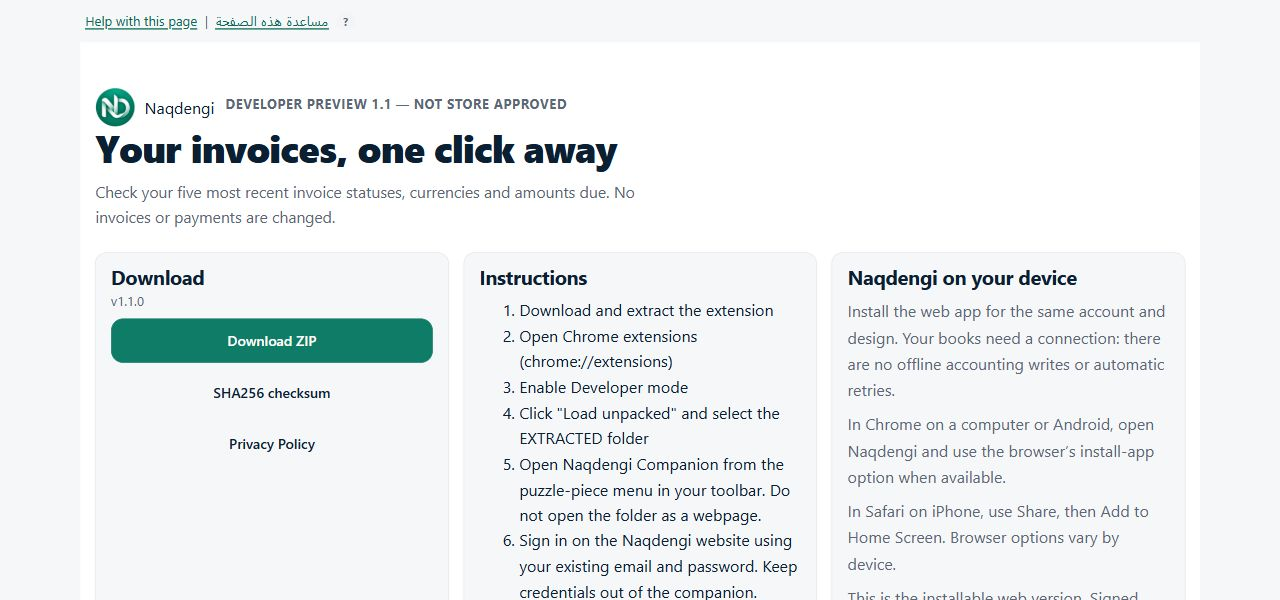
Naqdengi Chrome companion and web app
Purpose
Use the developer-preview Chrome companion to read up to five recent invoice statuses, currencies and exact amounts due. It does not create or change invoices or make payments. The installable web app is separate and opens the same Naqdengi website with the same account.
Steps
- Open Companion download and setup, download the ZIP and extract it.
- In Chrome, open chrome://extensions and enable Developer mode. Choose Load unpacked and select the extracted folder containing manifest.json. Do not paste the folder path into a browser tab.
- Open Naqdengi Companion from Chrome's puzzle-piece menu.
- Sign in on the Naqdengi website with your existing email and password. You do not need a second account. Do not type your password into the companion.
- Open your company from Your companies. Copy the company slug from /o/your-company and save it in the popup: 3–40 lowercase letters, digits and single hyphens.
- Select Connect and allow optional access only to naqdengi.com. Saving the shortcut alone does not grant permission or read invoices.
- Select Refresh to read again. An authorized company with no invoices correctly shows an empty list; no test invoice or customer is required.
- Disconnect removes site permission and clears the list. Forget shortcut removes the company shortcut and keeps the language. Company or language changes clear displayed data and cancel pending reads.
Common errors
- Sign-in requested: use your existing website account and return to the popup. Company membership and invoice-reading permission are checked by the server.
- Permission denied: no invoice data is read. Connect again only when you want to allow access.
- Wrong folder: select the extracted directory containing manifest.json, not the ZIP or a folder opened as a webpage.
- List too large or network unavailable: open Invoices on the website. The popup limits response size and never retries writes.
Limits
The companion reads only after Connect or Refresh, not automatically on open. Only its company shortcut and language are stored locally. Invoice data stays in popup memory. The browser attaches the normal website session; the extension does not read passwords, cookies, browsing history or page contents.
This is a developer preview, not a store-approved extension. Actual installed-browser acceptance remains separate from automated tests. No store submission or payment is part of setup.
The web app can be added through supported browser install or home-screen options described on the setup page. A connection is required for accounting. Its offline notice contains no company data, queues no changes and retries no submissions. After a failed save, reconnect and inspect records before submitting again. Native signed Android and iOS packages have separate acceptance gates.