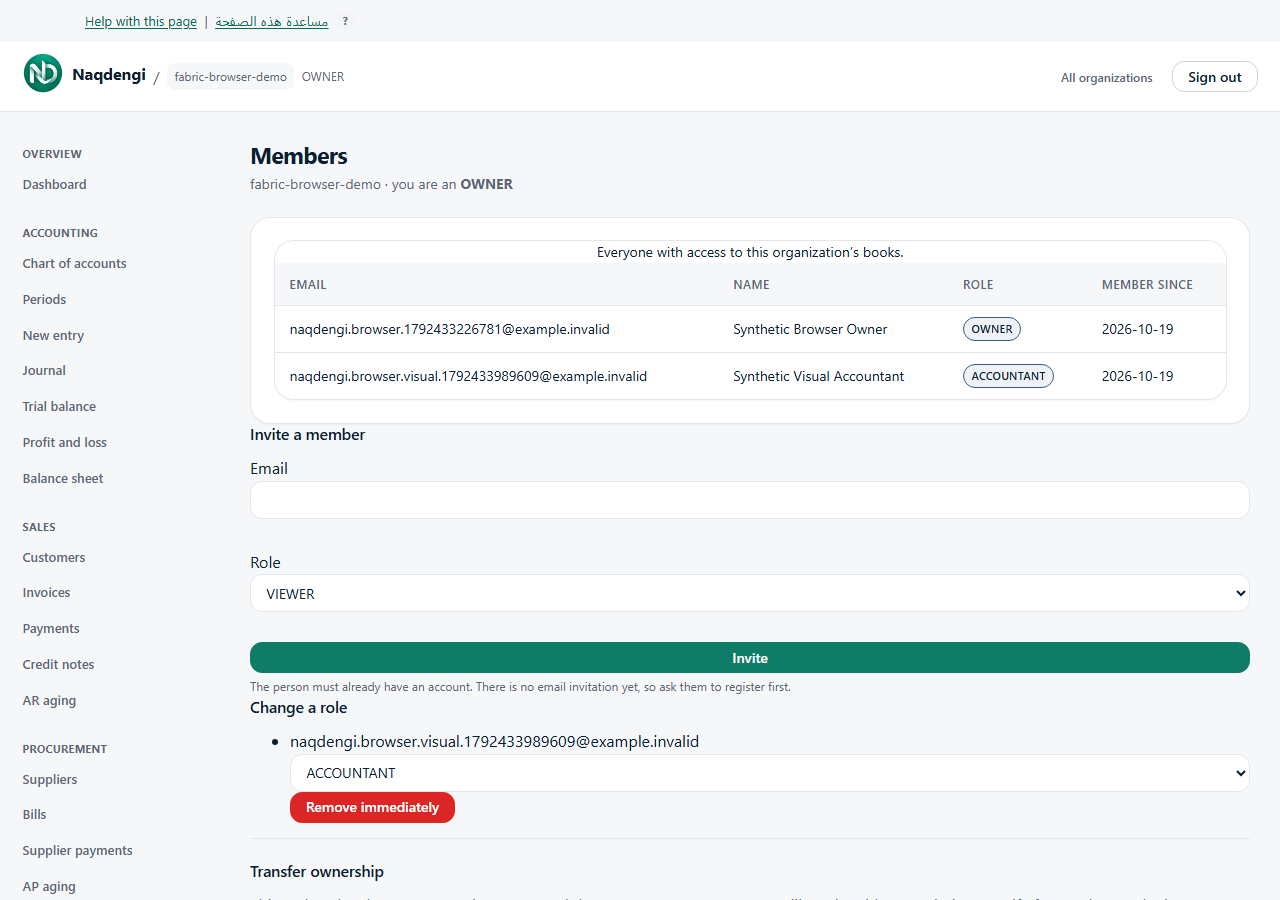
Manage company members
View company members and manage their access. ADMIN and OWNER can invite and change lower roles. The Admin overview is also restricted to ADMIN/OWNER; it shows company details, members, active account/customer counts, and Invite Member and View Audit Trail links. It is not a settings editor. Audit trail access requires ACCOUNTANT or above.
Steps
- Open your company and go to Members. Every member can read the member list showing Email, Name, Role, and Member since.
- The person must first register their own account at /register. Select Invite a member, enter their existing Email, choose an offered role below your own, then select Invite. This grants membership immediately and sends no email invitation.
- Under Change a role, choose another offered role in the member’s dropdown. Selection saves immediately; there is no separate Save button. ADMIN can grant VIEWER, BOOKKEEPER, APPROVER, or ACCOUNTANT. OWNER may also grant ADMIN. OWNER cannot be granted.
- To remove a member, OWNER selects Remove immediately. Access ends for that membership with no second confirmation.
- To transfer ownership, OWNER selects an existing other member as New owner, then selects Transfer ownership. The chosen member becomes OWNER and you become ADMIN. Only the new owner can transfer it back.
Common errors
- No account uses that email: ask the person to register first.
- Already a member: use the existing member row instead of inviting again.
- Not allowed: check your company role and reload your secure session. There is no privilege bypass.
- Member or company not found: verify your current membership and company.
Limits
- There is no email invitation, self-promotion, company rename, or settings editor on this page.
- OWNER removes and transfers; ADMIN cannot grant ADMIN or OWNER.