Sign in and manage company access securely
Purpose
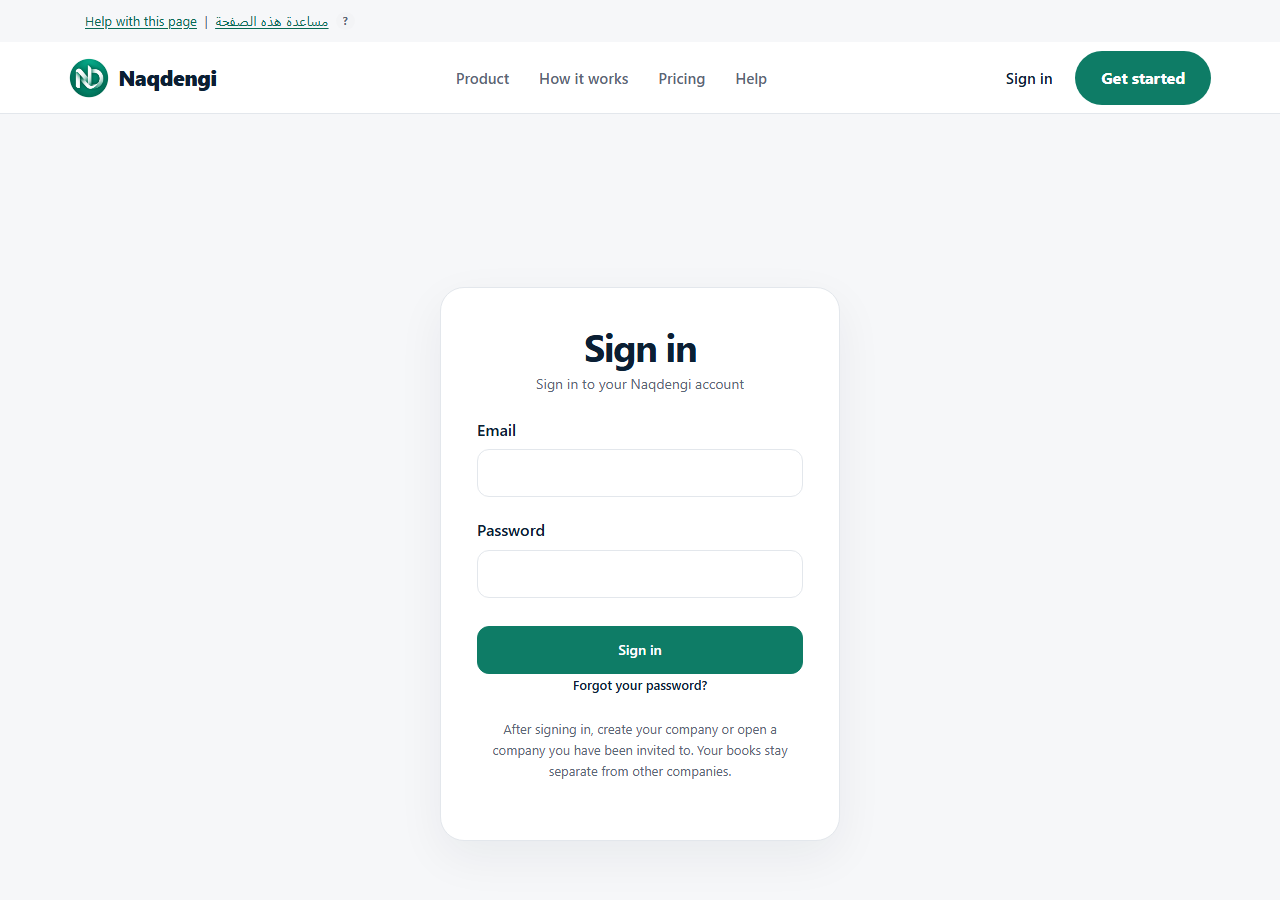
Use real email and password sign-in to check your company access and sign out safely. Open https://naqdengi.com/signin. Fill the Email and Password fields, then select Sign in. A successful ordinary sign-in goes to /organizations.
Create or reset passwords using at least 12 characters and no more than 1024 characters. Store your unique password in a password manager.
If your email is unverified, /organizations shows Secure your account and your account address. Choose Send secure link, then open the newest email link to use Verify my email on its confirmation page. Confirmation is separate from sign-in and does not prove subscription entitlement. For password recovery, go to /forgot-password.
Pick your correct company through /organizations. Roles are per company. One company OWNER is not the platform owner. Members can see the membership list. ADMIN and OWNER administer roles. OWNER alone removes or transfers ownership. The Company Admin page is available to ADMIN and OWNER. The Audit trail is available to ACCOUNTANT and above. These pages do not include security settings or an MFA toggle.
Each company has separate books. Having a Naqdengi account or a company link does not grant access to that workspace. Naqdengi checks your membership and permissions on the server for each company request. Choose the correct company before reading or changing records; members see only the company data allowed by their role.
Use Sign out in the company shell before leaving a shared device. Success navigates to /signin. If a message says the session is still active after a failed or network sign-out, do not treat it as signed out. Reconnect, retry explicit sign-out, and check the result. Never share email verification links, reset links, or passwords.
Steps
- Open https://naqdengi.com/signin.
- Enter your real email in Email.
- Enter your password in Password.
- Select Sign in.
- Go to /organizations and choose your company.
- Confirm your role and access before making changes.
- Verify your email address if Secure your account appears.
- Select Sign out before leaving a shared device.
- Reconnect and retry sign-out if the result is unclear.
Common errors
- Invalid email or password: This intentionally covers an unknown email or wrong password. Check your account address and password, or use password recovery at /forgot-password.
- Too many attempts: Wait for the displayed time. For a separate Request rejected error, reload the secure page.
- Missing organization or access: Ask an existing admin for access. Do not create a new account to bypass account rate limits.
Limits
There is no public TOTP enrollment, WhatsApp OTP login, passkeys, device or session management, or password-change settings screen in the current UI. The offline notice is advisory: saving needs a connection, and requests are not retried automatically. After an unclear network result, inspect the saved records before submitting again.