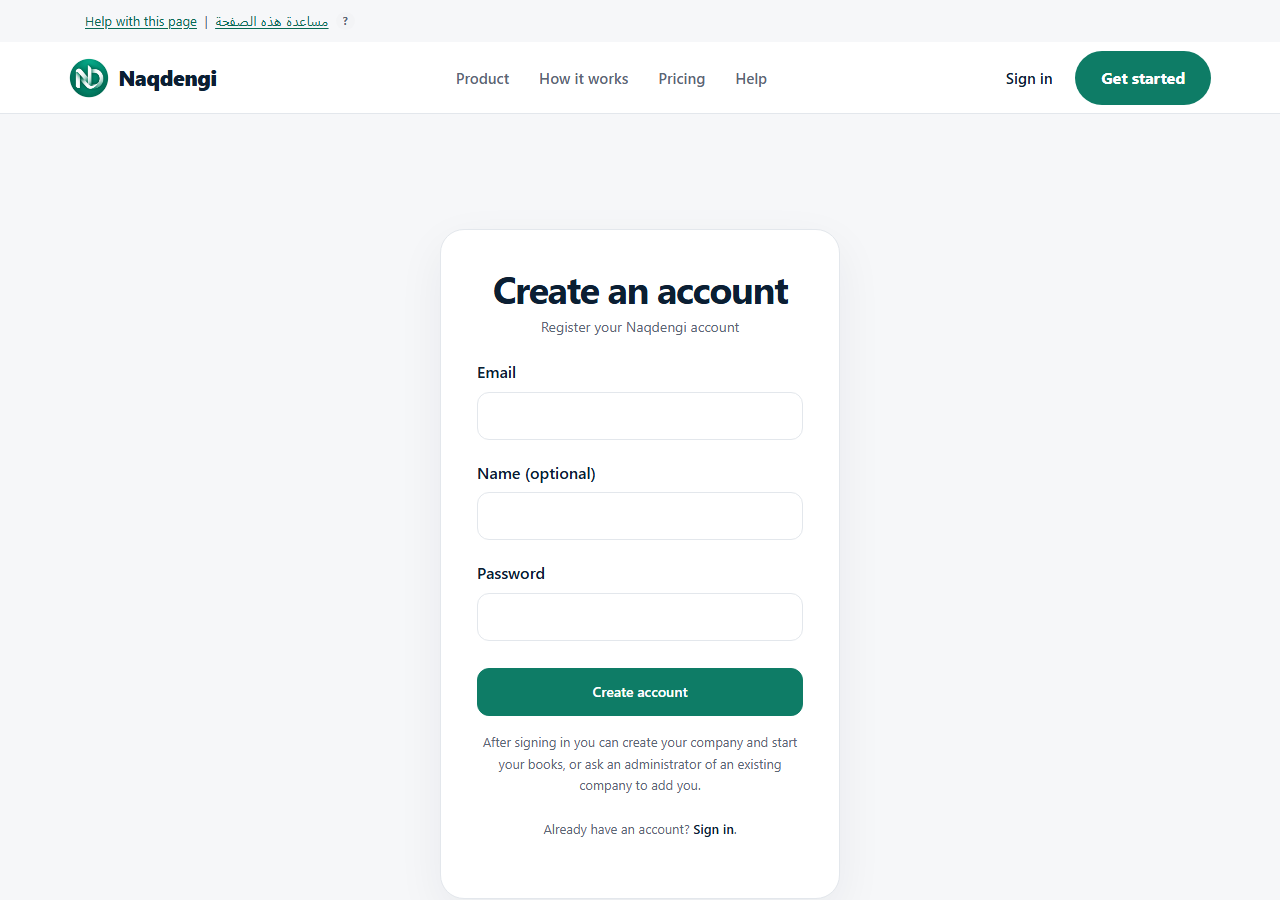
Getting started with your account
Purpose
Create a personal account, enter the correct company, and learn the next setup stages.
Steps
- Open /register. Enter your Email, optional Name, and a Password of at least 12 characters. Choose Create account. Successful creation attempts normal sign-in and takes you to /organizations. If automatic sign-in fails, the saved account remains; use /signin.
- On /organizations, an unverified account shows the Secure your account card with its address and Send secure link. Use the newest real email link and choose Verify my email. Email verification is required before subscription checkout. Registration alone does not confirm your email.
- For an existing company, ask an administrator to add your already registered email, then choose Open company in your companies list. Creating an account alone does not grant access to another company.
- For a new company, use Create your company and enter Name, Company URL, and Base currency. Choose Create organization. Creation leads to the company Subscription page, not a completed subscription. Billing is covered in a separate guide.
- Once authorized to use the company, inspect the Dashboard: Cash (ledger account 1000, not a live bank feed), Income this year, Expenses this year, Net profit, receivables and payables ledger balances, Draft invoices, Draft bills, and recent posted activity. Quick actions include New invoice, New bill, and Record payment. Then use Chart of accounts and Periods before journal posting.
Guided setup and familiar navigation
Choose Get started from your company list or company toolbar. Start fresh shows the setup pages your role can open. Move from another system shows preparation steps and familiar terms; choosing QuickBooks or Tally does not import files, convert books, or emulate that product's shortcuts. File import and automatic conversion are not available yet. Keep your original export, agree on a cutover date, reconcile the trial balance and customer/supplier balances, and get your accountant's signoff before moving real books.
Choose Try a practice company, then Open guided practice, for the existing Academy flow. Practice companies are private, free and use synthetic records, separate from your real business books.
Use Go to… in the company toolbar to search the pages your role can open. For example, “vendors” finds Suppliers, “debtors” finds Customers, and “ledgers” finds Chart of accounts. Alt+K opens this search outside editing fields. Use Tab to move through results, Enter to follow a link and Esc to close and return focus. Browser save and print shortcuts are unchanged. This is navigation assistance, not automatic saving or posting.
Compact layout reduces table spacing. It saves only your layout preference in the current browser. Toggle it again to restore comfortable spacing; other browsers and devices have their own preference.
Check a CSV before migration
In Get started → Move from another system, Check a CSV export locally can inspect customers, suppliers or accounts. Choose a UTF-8 CSV no larger than 1 MiB, with at most 1,000 data records, 32 columns and 4,096 characters per cell. Files stay in the current browser; no upload or company write occurs.
Select the record type, then choose a separate source column for each field. Source record ID and Name are required; accounts also require Account code, Account type and Currency. Account types are ASSET, LIABILITY, EQUITY, INCOME and EXPENSE; account currency uses three letters, such as AED. Existing system IDs must be retained exactly. No columns are guessed automatically.
Choose Validate preview. All duplicate source IDs in the file are flagged, including the first occurrence; duplicate account codes are also flagged. The result shows valid and invalid record counts and the first 25 results. Clear removes the selected data and mapping from this preview. Changing record type also clears them.
No records saved. Preview only. A valid preview does not check existing company conflicts, create accounts or contacts, import transactions, reconcile balances, or complete a migration. Do not delete your source files or treat this result as accountant signoff.
Common errors
- Already registered email: use Sign in.
- Request rejected: reload the secure page.
- Too many attempts: wait the displayed time. There is no bypass.
- Empty company list: create a company or ask an administrator to add you.
Limits
- No automatic membership in an existing company.
- No email invitation feature yet.
- Registration does not verify email or activate a paid subscription.
- Access and write actions depend on company role and subscription. Setup counts alone do not prove an open period or payment collection. If aging totals require review, inspect the linked aging report.