Open and manage accounting periods
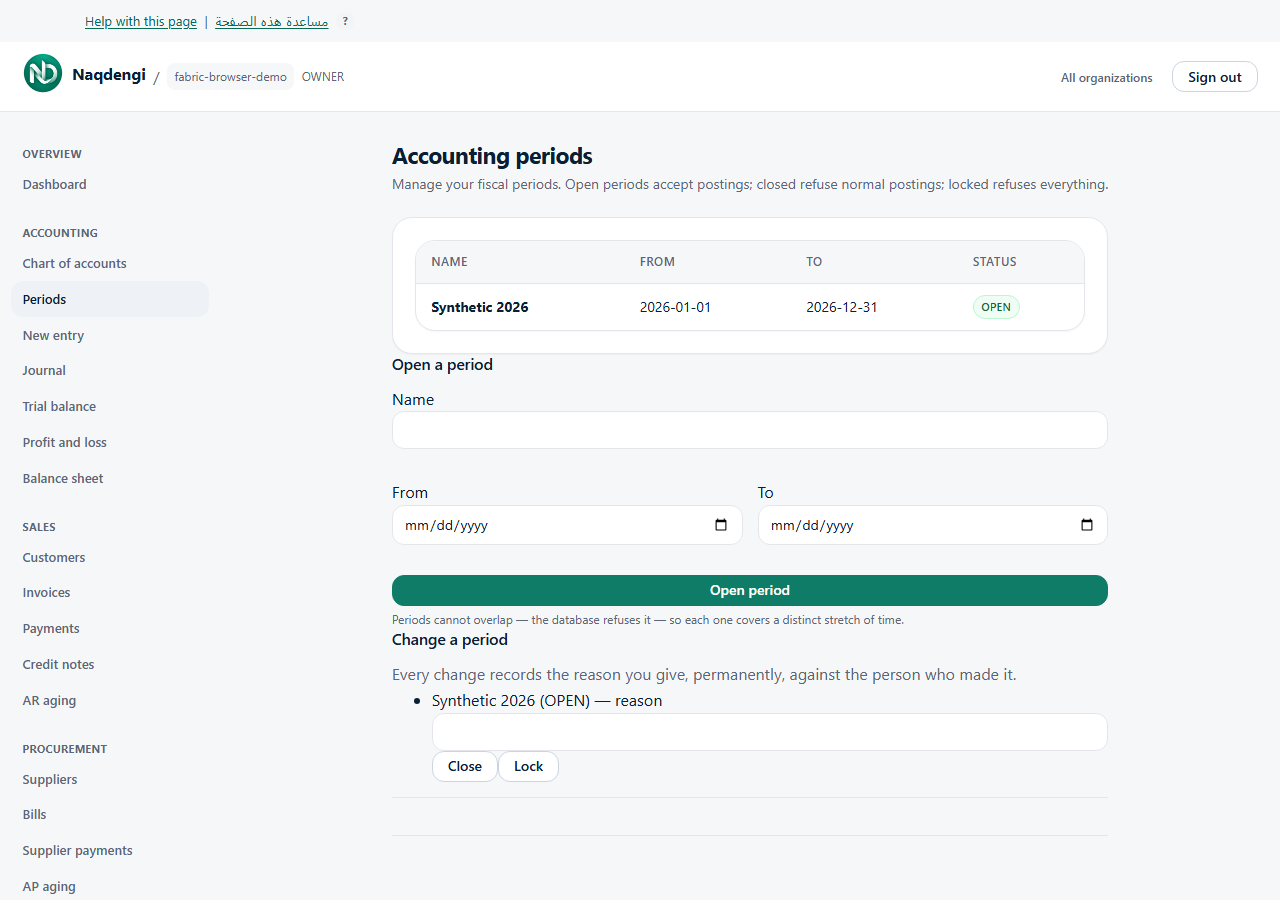
This article explains how to view, create, change, lock, unlock, reopen, and close accounting periods. The Accounting periods page shows columns Name, From, To, and Status. Company members can read periods. BOOKKEEPER or higher can create periods. ACCOUNTANT or higher can close periods. ADMIN or OWNER can lock, unlock, and reopen periods. These actions require the respective server permissions. Open your company first, then go to Periods.
Steps
- Open the company and choose Periods.
- To create a period, choose Open a period.
- Enter values in Name, From, and To.
- Ensure the date range does not overlap another period.
- Choose Open period.
- Under Change a period, enter a reason for that period. The reason and person making the change are recorded permanently.
- OPEN offers Close or Lock; CLOSED offers Lock or Reopen; LOCKED offers Unlock, according to your role.
- Reopen and Unlock set the period status to OPEN.
Common errors
- Refused messages follow the actual cause, such as overlapping dates or an invalid status transition.
- Your role cannot do that means you need an appropriately authorized colleague.
- Period or company not found means check the company and session.
Limits
- There is no period delete or edit-date UI.
- There is no automatic period-end closing-entry wizard or fiscal-year rollover.
- The reason cannot be skipped. Normal postings need an OPEN period covering their date; reversals require an OPEN period covering today.
- Closing refuses normal posting and locking blocks posting, but neither deletes existing financial records.