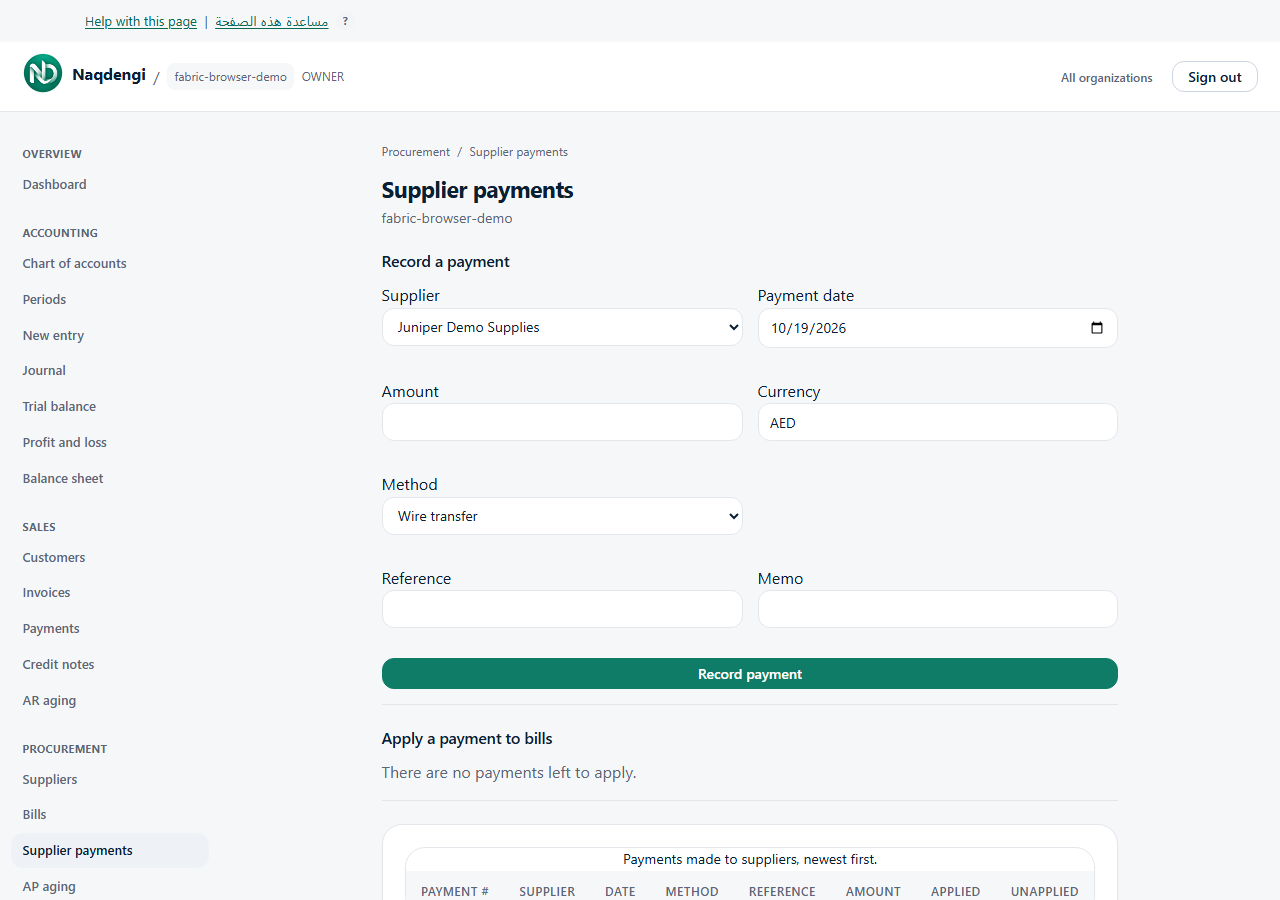
Supplier payments
Record money already paid to suppliers and apply it to posted bills. This is bookkeeping only — no fund transfer or card charge. Only Accountant, Admin, or Owner roles can access.
Steps
- Go to Procurement, then Supplier payments.
- Find Record a payment. Choose Supplier, Payment date, positive Amount (up to 4 decimals), Currency, and Method (Wire transfer, Check, Credit card, Cash, Online). Add optional Reference and Memo.
- If currency differs from company base, enter an evidenced Exchange rate (1 foreign = ? base); no automatic fetch.
- Click Record payment. The payment appears in the list with Applied and Unapplied amounts.
- To allocate, find the Apply a payment to bills section on this page. Select the Payment, then for each open POSTED bill enter a positive Apply amount. Watch Left to apply; total cannot exceed available unapplied amount and each line cannot exceed the bill's due amount.
- Click Apply payment. This requires the same supplier and currency, an open accounting period for the payment date, and the system accounts Bank/Cash (1000) and Accounts Payable (2000). Applying affects the ledger and reduces bill balances.
Common problems
- Currency mismatch: payment and bills must share the same currency.
- Allocation errors: sum exceeds unapplied amount, line exceeds bill due, period closed, or missing accounts 1000/2000.
- No open bills or no payments left messages are explicit.
- Network uncertainty: check the list before repeating a record or apply action.
Not available
- Initiating bank transfers, refunds, or unapply actions.
- Online banking connectors.
- Bill mutations or reminders from this screen.
- Export buttons.